Malaysia Demand Responsive Transit (DRT) Map - User Guide
No more guessing — this map helps you find DRT stops near you, saves you the hassle of opening all four apps to see which one covers your area.
This map includes all DRT stops from Rapid On-Demand, Kummute, Trek, and mobi - community mobility.
Controls
- Zoom In/Out: Use the + and - buttons at the bottom right, scroll your mouse wheel, or pinch to zoom on mobile.
- Drag the Map: Click and hold your mouse (or touch and drag on mobile) to move the map.
Beginner Guide
- Click the position button at the bottom right.
- In the popup, leave the input empty and click OK.
- Make sure to allow location permission for the website if you haven't already.
- Your location will appear, marked on the map.
- Zoom in and drag the map to explore nearby DRT stops.
- Click a marker to view the operator and zone name.
- Click the zone name to view all stops under that zone.
- From there, you'll know which app to use to book your DRT ride!
Advanced Guide
Manual Positioning
Click the position button at the bottom right, then enter one of the following in the popup:
✔️ Coordinates - e.g., 3.113313,101.585437
✔️ Global Plus Code - e.g., 6PM34H7P+85
❌ Short Plus Code - e.g., 4H7P+85F Petaling Jaya, Selangor (not supported)
- Go to the Plus Codes website.
- Enter the location name/address, then press Enter on your keyboard.
- A box will appear at the bottom. Click the arrow-up icon on the left side of the box.
- Copy either the coordinates or the global Plus Codes.
Custom Location Markers
Add markers with notes to see if your destinations are near DRT stops.
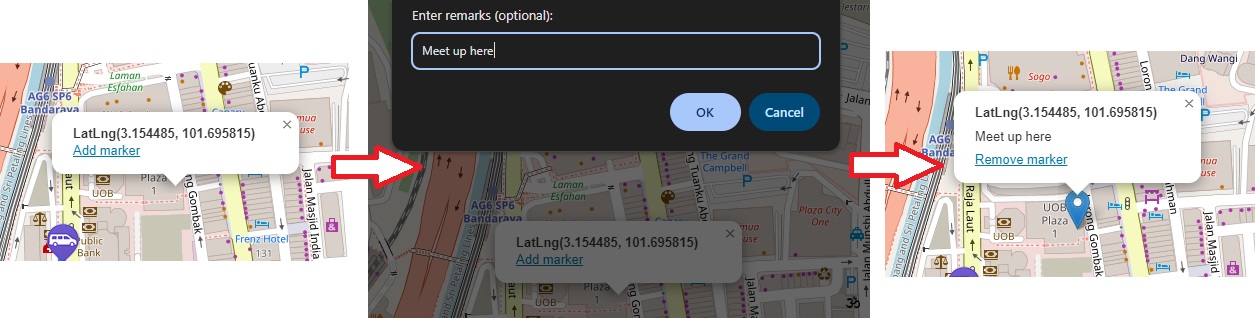
- Click anywhere on the map - a marker will appear.
- Click Add marker.
- In the popup, you can enter optional remarks, then click OK.
- A marker with your remark will appear on the map.
- Follow the step in Manual Positioning - a marker will appear.
- Click Add marker.
- In the popup, you can enter optional remarks, then click OK.
- A marker with your remark will appear on the map.
- Click on a custom marker.
- In the popup, click Remove marker.
Interchanging Between Zones
You may see multiple zones served by the same or different operators when clicking on a yellow multi-zone stop marker.
Use this info to plan your journey across zones.
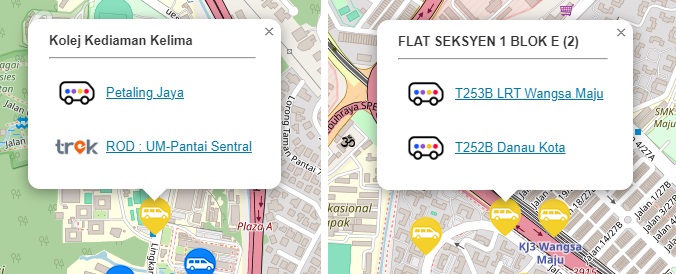
For example:
- You're currently at Pearl Point Shopping Mall and want to go to Pavilion Bukit Jalil for more shopping.
- Based on the map, you can take the Trek service (ROD : Taman OUG) from Pearl Point Shopping Mall to KL2324 LRT AWAN BESAR, then switch to the Rapid On-Demand service (T563B MRT Serdang Raya Utara-Pavilion BJ) to reach Pavilion Bukit Jalil.
FAQ
-
Why can't I search places directly instead of using coordinates or global Plus Codes?
Place search (geocoding) relies on paid services that are costly to maintain☹️.
This is a free tool, so I keep it simple by using your location or enter one manually to show the nearest DRT stop. -
Why can't we see all the markers regardless of zoom level?
Showing thousands of markers at once would clutter the map and overwhelm you with information.
It can also slow down your browser and lead to a laggy, frustrating experience.
By adjusting what's shown based on zoom level, the map stays smooth, readable, and useful. -
Why are there nearby markers that aren't grouped as multi-zone stops?
This mainly comes down to the data provided by the operators.
I did my best to group stops that are within 4 metres of each other, but if they're slightly further apart or recorded separately in the data, they may appear as different stops. -
I want to give feedback or report an issue.
I always looking to make the map better.
Just drop me a DM on X (formely Twitter), and I'll do my best to respond😉.